Cannot log in to Remote Desktop

So I have to admit, I spent an hour trying to figure out why I couldn’t connect to a remote desktop connection. I kept getting a message that the login and/or password was incorrect. I knew the login and password were correct though because on the physical target computer I could login using the same login name and password. I decided to create a new user on the target computer and low and behold I was able to remote desktop onto that target computer using the new user. So what was the problem? why couldn’t I remote using the original user? Well it turns out to be something simple. When you login to windows, the login screen shows you the “Display name” and not the username. What I entered into the remote desktop was the display name, ick! Once I entered the username instead of the display name into remote desktop, I was able to get in and it worked as expected.
Posted in Network, Remote Control, Software, Windows | Leave a comment

Monitor shows out of synch

I have a LCD monitor, keyboard, mouse, and power cord setup that I use when testing and/or re-installing a desktop. Recently during a reinstall, the monitor showed “out of sync”, it’s an older Viewsonic VG150 and my first thought was the monitor has finally passed it’s prime and it can’t handle the newer video cards. Something that didn’t make sense though was that the bios and boot sequence did display on the monitor and it would only display “out of sync” when windows started. Some head scratching later, I realized it must be the resolution. I plugged in a newer widescreen monitor and viewed the display properties and indeed the display was set to a widescreen resolution. I changed it to 1024 x 768, applied the setting, switched the monitor back to the Viewsonic and voila! the Viewsonic displayed the window’s desktop. A simple solution that will keep my old tried and tested monitor in operation.

Posted in Desktop, Hardware, LCD | Leave a comment

HP Laserjet 1012 Windows 7 Driver

A friend recently bought a new Windows 7 desktop and when he hooked up his older HP Laserjet 1012 printer, it couldn’t find any drivers. He went to the HP website and it appears the printer is no longer supported and there are no driver available. In the past, using a generic PCL 5 or 6 driver has worked for me when I couldn’t find a printer driver but in this case, I could not find a compatible driver. A little bit of Googling and I came across this forum article. Near the bottom of page 1, user “ncaguy101” had the solution. When installing the driver, if you choose from windows update, it’ll load a list of possible drivers including one that is not in the non-windows update version of the list of drivers. The “HP Laserjet 1015” appears to be compatible as long as you also select “Generic IEEE 1284.4” as the port instead of the default USB port. Once I did those 2 steps, my friend was able to once again print.

4/17/12 – A follow up to this, It seems the printer will error out after a number of prints with “Unsupported personality: PCL”. If you turn off the printer and turn it back on, it seems to resolve the issue until you need to once again restart it. I’m not too sure if it’s the printer memory not getting cleared after each print but restarting the printer each time seems to resolve the issue.

Posted in Driver, Hardware, HP Laserjet 1012, Printer, Windows | Leave a comment

HP Pavillion DV2000 black screen on boot up

A friend gave me a laptop because it was broken, older and they no longer wanted it anymore. Checking it out, I started it up and yes indeed it appeared to be broken, the blue lights on the media bar would light up and the DVD drive would make a little whirl noise and then nothing. The screen would remain off and as far as I could tell the hard drive didn’t kick in and it was just waiting for a post and nothing happened. A couple of hours of Googling i came across this YouTube video by “mixcatcom”. It exactly showed the same symptoms I had and a possible solution. Out came the screwdriver and a half hour later, using a creme brule torch I heated up the NVidia chip like the video showed. I put it back together (4 extra screws left over, YAY!) and to my amazement it worked! The laptop booted up to windows and everything worked perfectly.

Posted in Hardware, HP Pavillion, Laptop | Leave a comment

NVidia Video Card error

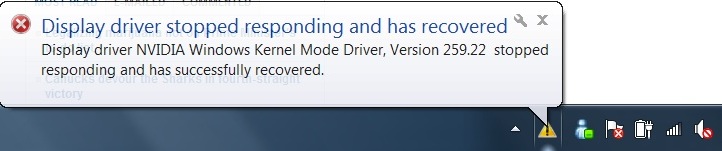
I had a Dell Latitude E6510 laptop and the screen would randomly freeze up, flicker to black and then the video display restored. Windows would display the following error:
Video Error
in the tray and I would need to close and restart some programs such as MSN Instant Messenger as the window would just be blank when I view it. Going to the device manager and checking for updates to the video driver resulted in windows saying the driver was up to date. As it was random and infrequent I tried to live with it but then eventually it was time to find an answer. Going to the NVidia web site, on their driver download page, it gives a few options to find any driver updates for your machine. I chose “Option 2”, it requires you to install an Applet to allow it to detect your video card. Once I did that, I did in fact have an update to my video driver. Once the update was installed, the video problems have stopped and the laptop is once again happy.

Posted in Dell, Driver, Laptop, Windows | Leave a comment

SATA 2 and 3 not working on a Dell Inspiron

Recently I went to install a second hard drive into a Dell Inspiron 531. It currently had an existing hard drive and DVD drive already installed on SATA 0 and SATA 1. I figured simple enough, add a SATA cable to SATA 2, plug the other end into the new drive, plug in the power and all would be happy. To my surprise, I checked the BIOS and it showed only the devices in SATA 0 and 1. What should have been easy was now going to require some Googling. In searching around a came across this form post. Half way down posted by someone named HP_HP was the answer, SATA 2 and 3 are not enabled by default. The steps HP_HP gave

Go to BIOS
Select Advanced,
Select Seriel-ATA Configuration, hit enter
look on SATA Controller, I am sure it would be SATA-1 on your setting.
Change it to SATA-1+2
Save and Exit..

worked like a charm. After changing the setting, the drive was detected and worked with out any further problems.

Posted in Dell, Desktop, Hardware, Sata | Leave a comment

Computer going to sleep

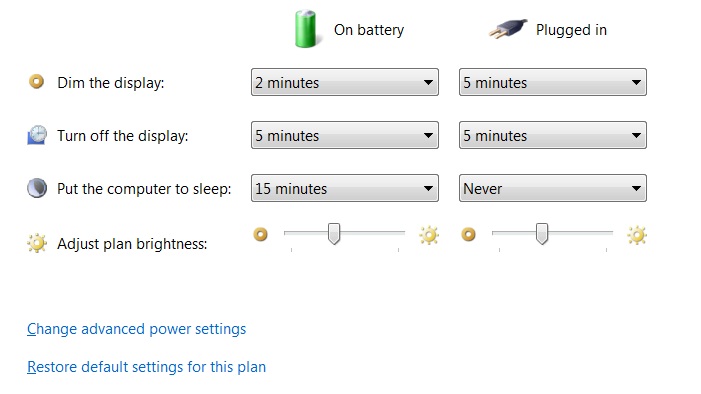
So it’s Friday and you need to get home but you still have some work to do. What should you do? Well you have logmein installed, so great, you can leave your computer on and remotely access the computer from home and finish off your work. You go into the battery power settings and set it to never go to sleep when plugged in.


Power Options


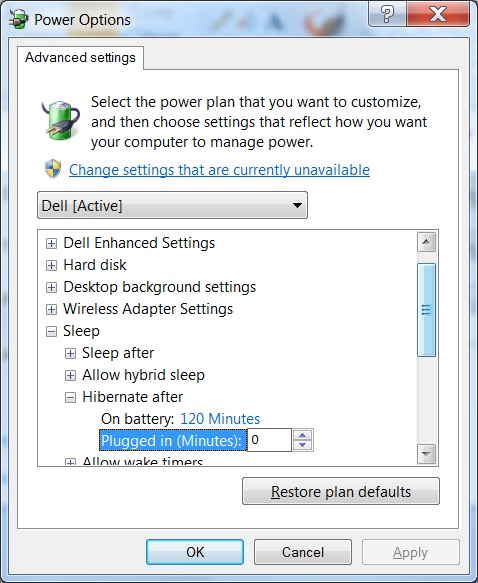
Happily you leave and on Sunday you try to access your computer to only realize it’s not online. What happened? It turns out there are two settings, one to put your computer to sleep after a certain amount of time and a second setting to hibernate after a certain amount of time. If you go into the advanced settings of your power settings, you will see a section titled “Sleep”, in this section is “Hibernate after”, change the value for “Plugged in (minutes):” to 0 and that will prevent your machine from hibernating.


Power Options Advanced


Changing those two settings will prevent your computer from turning off while plugged in.


Posted in Battery, Software, Windows | Leave a comment

Free Microsoft Office 2010 Online

A lot of people when buying a new computer don’t realize that Microsoft Office does not come pre-installed on the machine (well it might but it’ll be a trial evaluation copy). They might have stretched their budget to get the computer and don’t have the extra hundred dollars to purchase Office. So what now? It’s not widely publicized, but Microsoft offers a free online but slimmed down version of Excel, Word, Powerpoint and OneNote. The software is located here and requires you to sign in with your Microsoft Live account, which you can create for free. It doesn’t have all the functionality of a full Office install but for the most part it works and let’s you access simple Word and Excel files. I will note that Microsoft also has a slimmed down installed version of Office called “Office Starter” (it is a limited functionality Word and Excel). It only installs on Vista and Windows 7 and is supported by pop up advertisements. This version is becoming commonly installed on new computers and is not an evaluation. A link has recently been leaked to how to download the software from Microsoft’s website but this is not an official download and will be considered piracy if you download and install it.

Posted in Free, Software, Windows | Leave a comment

Free video screen capture

Have you ever had to try and explain how to do something over the phone but the person at the other end just wasn’t computer literate or just couldn’t follow along? A great application called Camstudio is free and allows you to record your on-screen actions. You can highlight which area of the screen you want to record, hit the record button and then do what you need to do. The video can then be saved in avi or swf (flash) format. You now have a recording of what you wanted the person on the phone to do. If you have access to a static IP, or a web hosting site, you can then just upload your file and have the person access that hosting site to view the video. With the person being able to visually see what you want them to do, they will be able to follow the instructions easier and save you a trip out to see them for what might have been an easy fix.

Posted in Free, Remote Control, Screen Capture, Software, Windows | Leave a comment

Power cord only charges the battery when twisted

I’m surprised how often I see people do strange things to make their computer work. One example is twisting the power cord on a laptop so that the battery will charge. The process of twisting or placing a book on the power cord right where it connects to the laptop seemed to be the only way to make this laptop charge. I knew what the problem was the moment I saw it. Quite often, if the power cord has been yanked out, usually from the power cord being tripped on, the internal power jack on the motherboard will become loose. The process of twisting the power cord or placing a book on the cord causes the plug to be angled up and pushes the internal power jack up allowing the contacts to touch and thus allowing electricity to enter the laptop. I would like to say there is an easy fix for this, but unfortunately there is not one. The only fix for this is to re-solder the internal power jack. For the most part, none of the big box stores will fix this for you as it requires the entire laptop to be taken apart. You can probably find a small mom and pop type of shop that will do it for $100 plus or minus a few bucks. If you have no other options and the laptop is just not worth the money to fix it, and if you’re handy with taking things apart, then go ahead and take it apart and re-solder the plug back in nice and tight.

Posted in Battery, Hardware, Laptop | Leave a comment